

Underneath the GUI of the Windows OS, lies the Command line. The “Command Prompt” application allows you to unleash the power of the operating system and do things that are not possible by using the Graphical User Interface. One of these powerful commands, is called XCOPY.
Imagine that you have created hundreds of folders and subfolders within a directory, and you would like to copy the entire folder structure to another location, without the files. How about creating a simple backup system that copies all modified files within a directory to a secondary location. These scenarios and much more can be accomplished by this simple, yet powerful command.
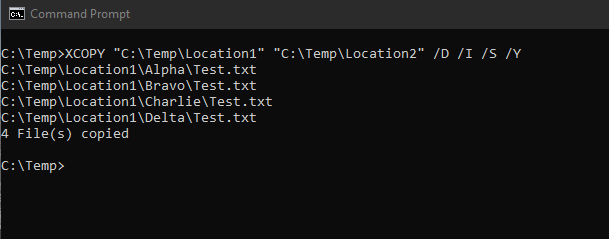
What you see above, is the XCOPY command at work. If you are looking at the command line interface for the first time, this may look very daunting. But, fear not, we will break down everything that you see in the screenshot above. If you haven’t already, launch the Command Prompt application by searching for it in the “Start Menu”. When you first launch it, you will be presented with a simple text prompt and a blinking cursor.
The first step is to call out the command that you would like to use, in this case, XCOPY. Next we will enter the remaining arguments for this command. If you are familiar with functions in Excel, you know that each function comes with it’s own parameters, or arguments. The arguments are the specific input or independent variables of that function.
Below, we will lay out the proper syntax for using the XCOPY command, along with the popular arguments.
XCOPY “C:\Full Location\Including subfolders” “D:\New Location” /S /D /I /Y
This is an example of how the XCOPY command is written.
From the above example, you can see how the XCOPY command is written. After calling out the command, you will type the full location of the folder that you would like to copy from, wrapped in quotation marks. You don’t have to include quotation marks, but if any of your folder names contain spaces, then it will cause an error in the command. To be safe, I like to include quotation in both locations. The next location will be where you would like these file(s) and subfolder(s) to be copied.
Basically, you only need these three pieces to use the XCOPY command. Any arguments that follow, are totally optional. However, the arguments give more power to the command. For example, the “/D” argument only copies files that are not in the new location, or are newer than a file in the second location. In the scenario that was listed in the second paragraph, if you want to use this command as a simple backup tool, this is the argument that you will want to use.
Below, we will list out the most used arguments, and what they mean:
- /D:m-d-y – Copies files changed on or after the specified date. If no date is given, copies only those files whose source time is newer than the destination time.
- /S – Copies directories and subdirectories except empty ones.
- /E – Copies directories and subdirectories, including empty ones.
- /I – If destination does not exist and copying more than one file, assumes that destination must be a directory.
- /T – Creates directory structure, but does not copy files. Does not include empty directories or subdirectories. (to include empty directories, use /T /E)
- /U – Copies only files that already exist in destination.
- /Y – Suppresses prompting to confirm you want to overwrite an existing destination file.
In the XCOPY example that was posted above, the command will only copy the files that are new or recently changed, will include directories and subdirectories, create any newly created directories that are not in the new destination, and it will not ask to confirm file overwrites.
Real world example: The above example was actually used by a small business, as a purpose of creating a file archive. Using this command in combination with Windows Task Scheduler, newly created files were automatically backed up to a secondary location. Since XCOPY doesn’t delete any files, this became a creative backup solution, in case any files were deleted in the original directory.
Caveat: Nowadays, you have many file backup solution software, including GoodSync and OneDrive. However, before these were available, small companies and home users could use this as a simple backup solution. The only caveat to this arrangement, was if you moved folders or files within your directory. More sophisticated file synchronization programs nowadays are smart enough to track folders that have been recently moved. With XCOPY, if you move a subfolder within your directory, it would treat the new location as a brand new folder and copy all of it’s contents again. This does not seem like a huge deal for small directories. But, imagine having gigabytes of files in a certain folder, and moving it across the directory. You now have gigabytes of duplicate files being created in the secondary location.
XCOPY was not created to be a backup tool, but as you can see from our examples, you can certainly use it to fill a customized need.
 Notes
Notes 